

We’ve launched a new version of the Marketplace, designed to make your work easier and faster than ever. We’ve introduced several improvements to help you find valuable websites more efficiently – those best suited to your domain and link-building strategy.
The updates in the Marketplace are divided into three main areas:
- Personalization Panel – a new module that lets you add your domain and manage it individually. It includes an advanced exclusion system for websites where you already have backlinks, as well as an AI-powered topical matching feature that suggests websites best aligned with your domain’s content.
- New Filters – redesigned and simplified filters that you can adjust to your own preferences.
- Saved Searches – an enhanced feature for saving and managing your searches, making it easier to return to your preferred settings and monitor new results.
In the following sections, you’ll find a detailed description of all the improvements, along with practical tips on how to use the new features step by step.
Personalization Panel
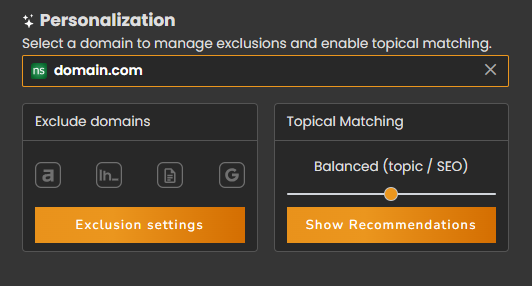
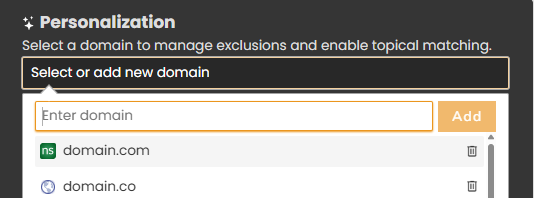
The Personalization Panel lets you display only those websites in the Marketplace that are relevant to your domain’s topic. It also helps you exclude websites where your domain already has backlinks. Simply enter your domain address or a specific URL to get started.
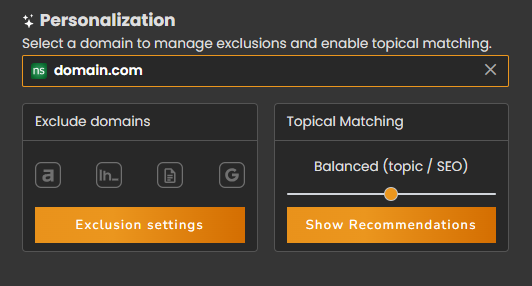
The way this feature works is simple – after entering your domain or selecting it from the dropdown list, you’ll gain access to two main sections: Exclude domains and Topical matching. These options let you refine the search results in the Marketplace to fit your website’s needs – eliminating unwanted websites and focusing on those that are most relevant to your topic.
Exclude Domains
The Exclude Domains module lets you define which websites should be excluded from search results for your domain. Each domain can have its own set of exclusions – the settings are saved individually and become available every time you select that website again in the Personalization Panel.
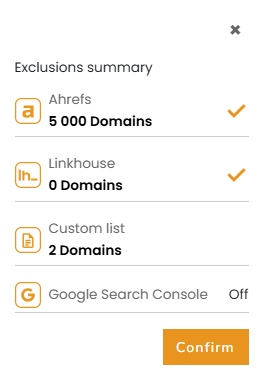
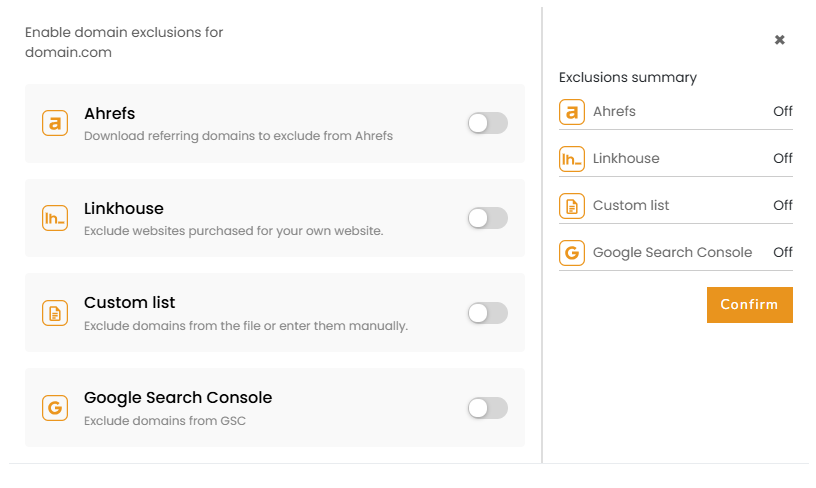
You can add exclusions from multiple sources – automatically import domains from Ahrefs, exclude websites purchased in Linkhouse, or upload your own list from a file, Google Sheets, or Google Search Console.
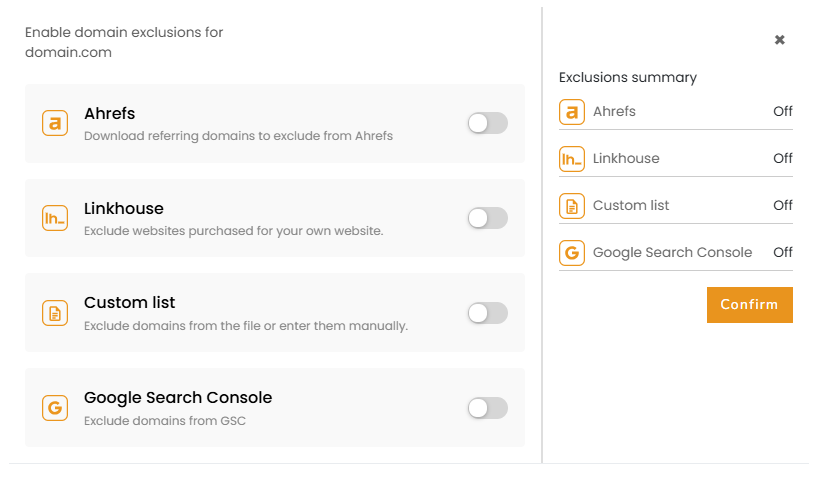
Available exclusion options include:
- Referring domains list from Ahrefs – data is automatically imported from Ahrefs.
- Up to 5,000 domains can be excluded at a time.
- You can choose whether to import only dofollow links or all links from your domain’s profile.
- If you’ve entered a specific URL instead of a full domain, you can decide whether to import referring domains only for that URL or for the entire domain.
- Automatic exclusion of websites purchased in Linkhouse – the system automatically skips all websites where you’ve previously purchased links for the domain specified in the Personalization Panel.
- Adding your own exclusion list:
- Paste a list of domains directly in the panel (you can paste multiple domains at once – one per line).
- Upload a file with your domain list – multiple file types are supported, such as .txt or .csv.
- Paste a list of domains directly in the panel (you can paste multiple domains at once – one per line).
- Excluding domains from a GSC file – you can upload a Google Search Console file directly from your drive or import it from Google Sheets.
To do this, go to the Links tab in GSC, select “Export external links” in the top-right corner, download the file in CSV or Google Sheets format, and then add it to the Exclude Domains module.
The Exclude Domains module acts as an additional filter – it’s always visible on the left side of the Marketplace and you can modify or disable it at any time by clicking the X icon.
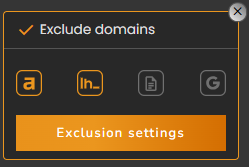
After configuring your exclusions, the panel on the right displays the number of domains that will be excluded from the Marketplace based on your settings. This way, you can immediately see how many potential results will be filtered out.
Topical Matching
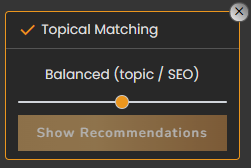
Use Topical Matching to quickly find the right websites. With the help of AI, we’ll recommend websites that align with your domain’s topic.
How it works
- Our system regularly analyzes the content of all websites available in the Marketplace, as well as the content of your domain.
- Based on this data, AI and vector search recommend websites whose topics are most closely related to your own.
- You can adjust how Topical Matching works – by moving the slider, you can choose whether to focus more on thematic relevance or, while keeping topical connections, prioritize websites with stronger SEO metrics.
- Personalization acts as an additional filter – it’s always visible on the left side of the offer list, and you can modify or disable it at any time by clicking the X icon.

We encourage you to test this feature and see how the list of results changes for your domains. Personalization helps you find valuable, topically relevant websites faster – including those less obvious ones that might otherwise be overlooked, yet often turn out to be excellent places for publication.
New Filters
Why did we introduce new filters?
The goal of these changes was to make filters more personalized – helping you shorten the process of selecting websites and managing campaigns across multiple domains.
The previous, classic filter layout had become insufficient – as the number of available parameters and tools grew, it became harder to narrow down results quickly and easily.
The new system has been designed to be more intuitive, flexible, and aligned with your workflow. As a result, using the extended set of filters is now faster and easier than ever before.
Key filter updates:
- In the Marketplace, only the filters you add yourself are displayed – so the default view is no longer cluttered with all available options.
- Filters you use most often are displayed automatically.
- The order and placement of filters is no longer fixed – you can organize them yourself in two ways:
- Custom order (Drag & Drop) – simply drag filters with your mouse to arrange them as you prefer.

- Grouped view – click “Group filters” to display them in blocks organized by topic.
- You can remove any unnecessary filter from the main view at any time with a single click – without deleting your entire filter configuration.

The new interface is clearer than the previous layout – now, the panel only displays the filters you’ve selected. You can easily add new ones, remove those you no longer need, or rearrange their order using drag & drop. This setup makes working with a large number of criteria much easier and keeps the search process more transparent.
Adding filters
To add a new filter, click the “Add filters” button. A list of available filters will open – you can either use the search bar or browse the full list. Once you add a filter, you can immediately set its value.
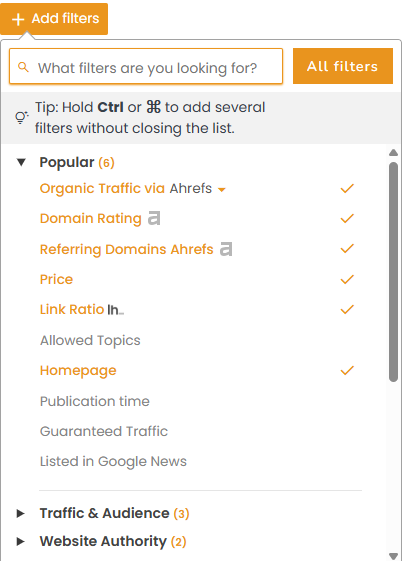
You can also select multiple filters at once – hold Ctrl (Windows) or ⌘ (Mac) to highlight several options without closing the list.
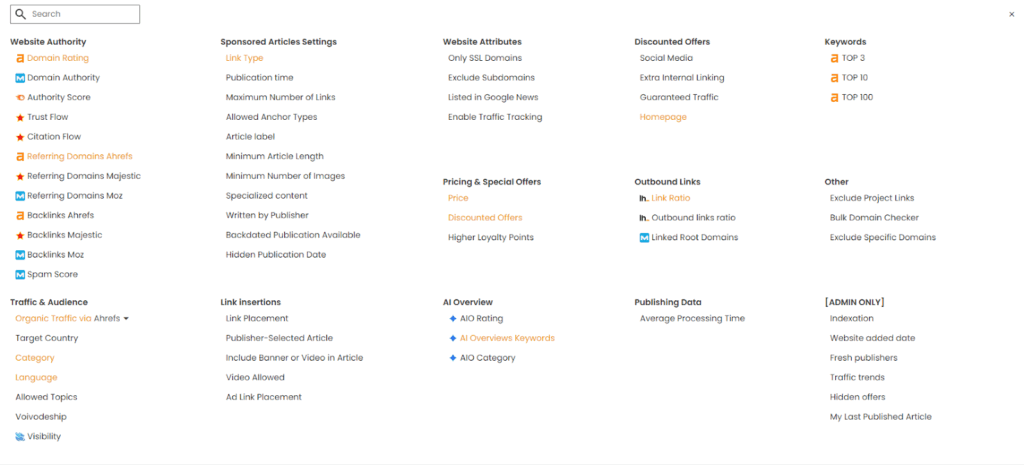
Under the “All filters” button, you’ll find the full filter view, similar to the layout from the previous version of the Marketplace. From there, you can also add multiple filters at once – simply click the ones you want to include in your view.
Filter functionality
We not only improved how filters work but also reorganized them and added new options to make using them simpler and more intuitive.
- Click a filter again to change its value. The system remembers your most recently selected filter values, making it easier to reuse the same settings in the future.
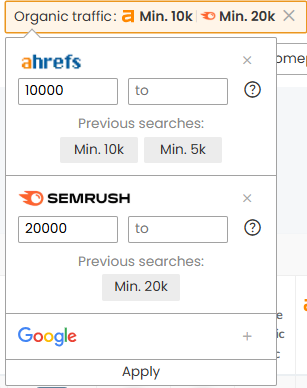
- Many filters now include a value range (from…to…) instead of just a single minimum value, allowing for more precise filtering of results.
- Some filters have been completely redesigned – for example, the Country filter now includes more detailed options, letting you filter by continent and language as well.
- Each filter also comes with a short description explaining how it works – simply hover over the filter name to see the tooltip.
Additional filter options
- Use “Clear all” to remove the values from all filters (the filters themselves will remain on the list).
- Use “Reset filters” to restore the default set of filters and layout view.
The new filters in the Marketplace are not just a visual update – they bring greater flexibility and control over how you search for websites. With a customizable layout, saved settings, and an intuitive design, you now have a tool that adapts to your workflow. You can find websites that meet specific criteria faster, while managing filters is simpler, clearer, and better suited to everyday work across multiple campaigns.
My Searches
The My Searches feature has been significantly expanded in the new Marketplace. Saved searches are now linked to the domain selected in the Personalization Panel – after choosing a specific domain, you’ll see at the top of the offer list the set of saved searches assigned to it. This makes it easy to switch between different domains and their individual filter sets.
New capabilities of saved searches
- Each saved search is assigned to a specific domain in the Personalization Panel, making it easier to manage multiple domains at once.
- After selecting a domain, a list of saved searches for that website appears at the top of the screen – you can run any of them with a single “Apply search” click.
- You can name and describe each saved search to identify it easily, for example:
- “Brand, URL; Price < 1000”
- “Keyword; Price < 5000”
- “Brand, URL; Price < 1000”
- Searches are saved together with their filters and filter values, so you can return to the exact same settings at any time.

For each saved search, you can see:
- the list of filters used,
- the number of results matching the selected criteria,
- the number of new results – showing how many new offers have appeared in the Marketplace since the last time the saved search was used.
Saving searches
- To save a search, set the desired filters and parameters, then click the disk icon.

- You can also enable email notifications about new websites that meet the criteria of your saved search.
The new My Searches feature lets you save entire filter configurations, return to your preferred settings, and automatically track new results.
Workflow in the new Marketplace
The new Marketplace features were built to simplify and speed up the entire process of searching for and ordering offers. Below is a practical, step-by-step workflow for using the new features.
First campaign for a domain
- Enter your domain in the Personalization Panel.
- Exclude domains – set up your exclusion rules (e.g., from Ahrefs, Linkhouse, or GSC).
- Add and configure filters – select the necessary criteria and define their values. If needed, use the Group filters option to organize your view.

- Enable Topical Matching and use the slider to decide whether you want to focus more on thematic relevance or, while maintaining topical alignment, prioritize websites with stronger SEO metrics.
- Browse the list of websites matched to your selected settings. You can adjust the filter view at any time to find the optimal setup.
- Save your search – this allows you to reuse the same settings with a single click in the future.
Next campaign for the same domain
- Select the domain in the Personalization Panel.
- Choose one of the saved searches linked to this domain – the filter configuration and saved values will load automatically (you can edit them if needed).

- Browse the list of websites matched to your settings and select the offers you want to use in the new campaign.
The new Marketplace – more than just an update
The new Marketplace isn’t just an update – it’s a completely new way of working, allowing you to act faster, more efficiently, and with greater precision.
With personalization, AI-powered topical matching, flexible filters, and saved searches, you can build campaigns with more control and less effort.
We encourage you to explore these new features in your Linkhouse panel and see how they can streamline your daily workflow.
Your feedback is extremely valuable to us – share your impressions and suggestions so we can continue to improve the Marketplace in line with your needs.