



We prepared this guide to show you how to add your website and create offers for it. You will learn step by step how to add your site to the system and what types of offers you can set up.
Once your website and its offers are added, the site will appear in the Marketplace and become visible to our advertisers, allowing them to place an order for publication on your website.
My websites – main view
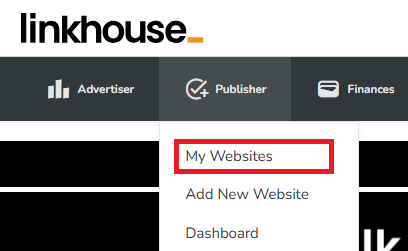
To check a preview of your websites and offers, choose the Publisher tab from the menu, then select the My websites option.
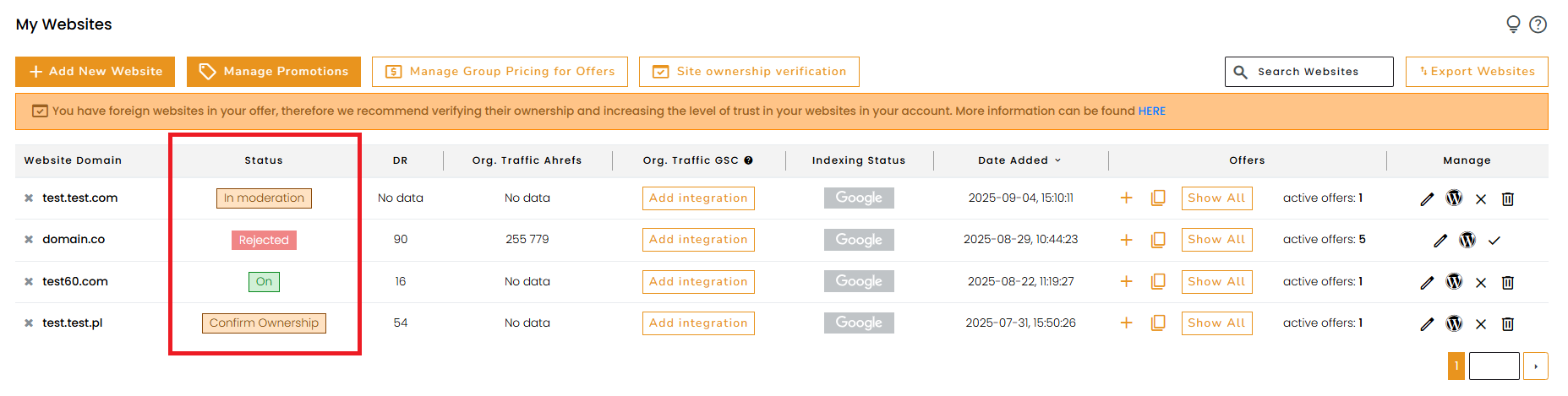
In this view, you can edit your added websites, add new offers, or remove them. You can also see the statistics displayed for your website in the Marketplace – these are visible to clients. This is the main view from which you can manage all your websites.
Here you can check whether a website is enabled (visible in the Marketplace), rejected, in moderation (verification by our team), or awaiting your ownership confirmation.
Adding websites
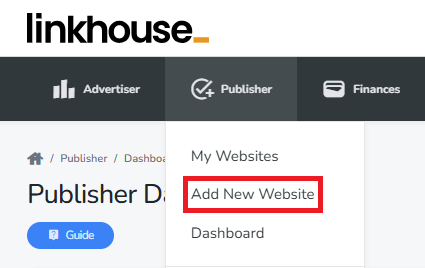
After entering the My Websites view, select the Add a New Website option to declare a new site.

After entering the website addition form, the first step is to provide the domain you want to add, specify the language of the website, and select the thematic category for the added site.
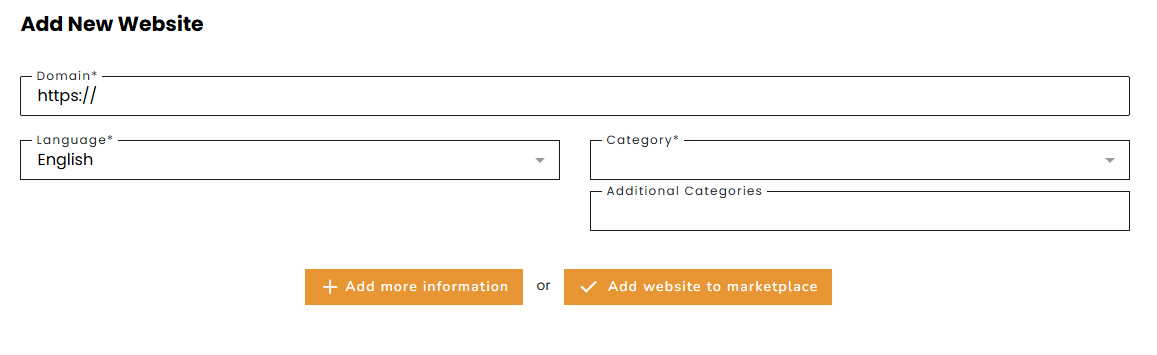
Once these basic details are completed, you can either finish adding the website and move on to the next steps (such as adding an offer) or provide additional information.
If possible, we recommend adding additional information to your website. This will give advertisers more details about your site, which may be a decisive factor in choosing your website for publication.
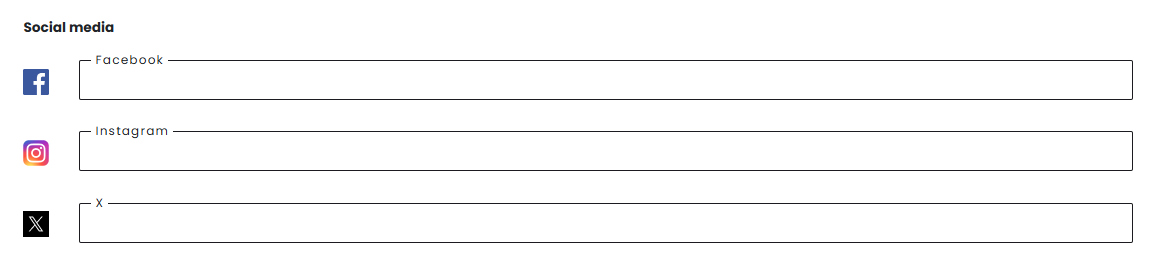
In the additional information section, you can add links to your social media fan pages. If you want to create an offer with additional promotion on any of these platforms, this step is mandatory – without the links you won’t be able to include it in your offer.
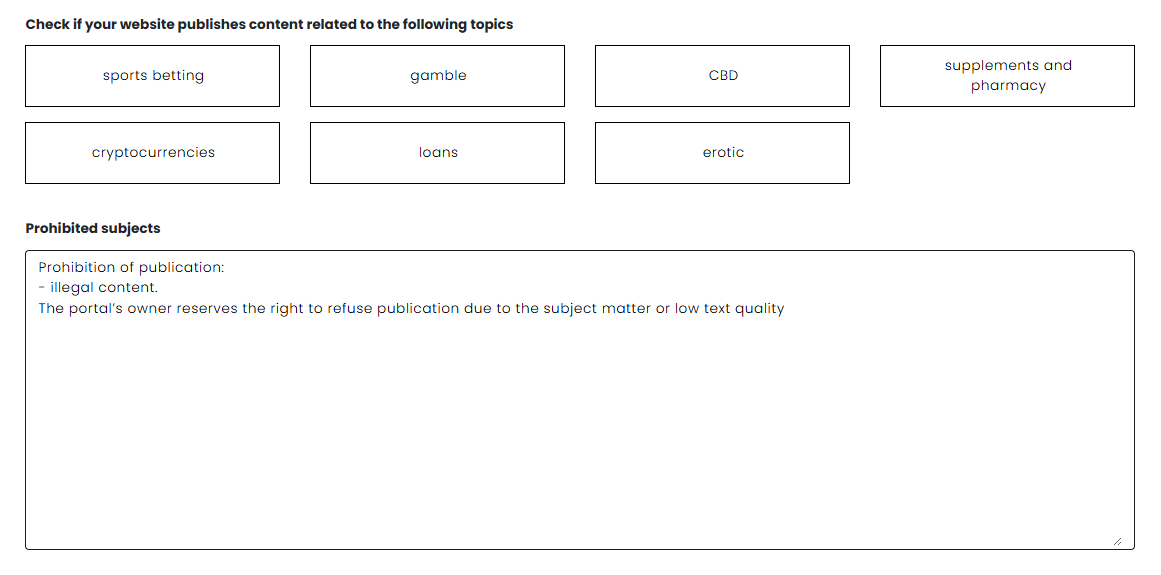
You can also indicate whether your website accepts sensitive topics such as loans, cryptocurrencies, supplements, etc. This is an important step if you want to add an offer in one of these categories, because without selecting these options, advertisers will not be able to find that your website accepts these topics.
Below, you have the option to enter the topics that you do not accept on your website. This gives advertisers clear information and helps them better match their campaigns to your site.
After selecting the additional information, click Add website to Marketplace and proceed to the next steps – configuring your offers!
Every new website and an offer after turning on is moderated. Process of moderation takes usually max. 24 hours
Adding offers
Adding an offer to your website is a mandatory step in the process of adding your site to our Marketplace. Without an active offer, the website will not be visible to advertisers.
To manage your offers, go to the Publisher tab, then select My websites and choose the website you want to work with. To begin, click on Add offer.

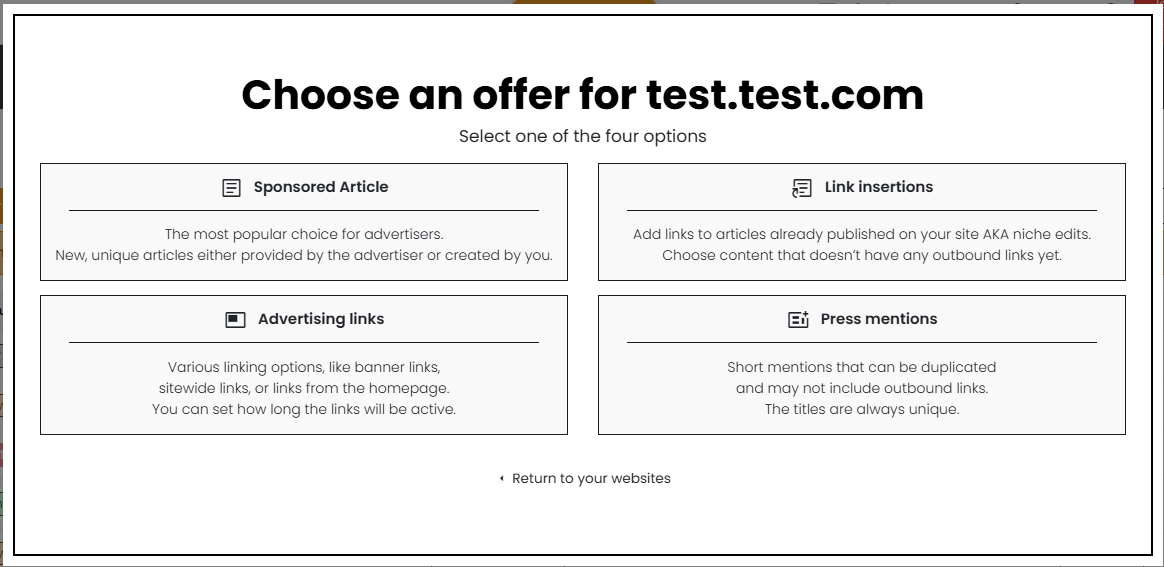
Now you can add offers from one of 4 main categories:
- sponsored articles (an article written and posted on your website by somebody else)
- link insertions (any link that gets placed into existing content)
- advertising backlinks (text links and banners placed on your website)
- press mentions (Short mentions that can be duplicated and may not include outbound links)
When adding an offer, pay attention to the durability! You can set links for at least 12 months or permanently. This means that in the first case you are committing to have the publication displayed at least one year after purchase. The second option assumes that the publication will always be displayed and you will not remove it from your website.
Sponsored article
Sponsored article offers are the most popular and most desirable option among advertisers on our platform. When adding offers, you don’t need to limit yourself to just one – you can create several with different specifications, which is even recommended to better match the needs of various advertisers.
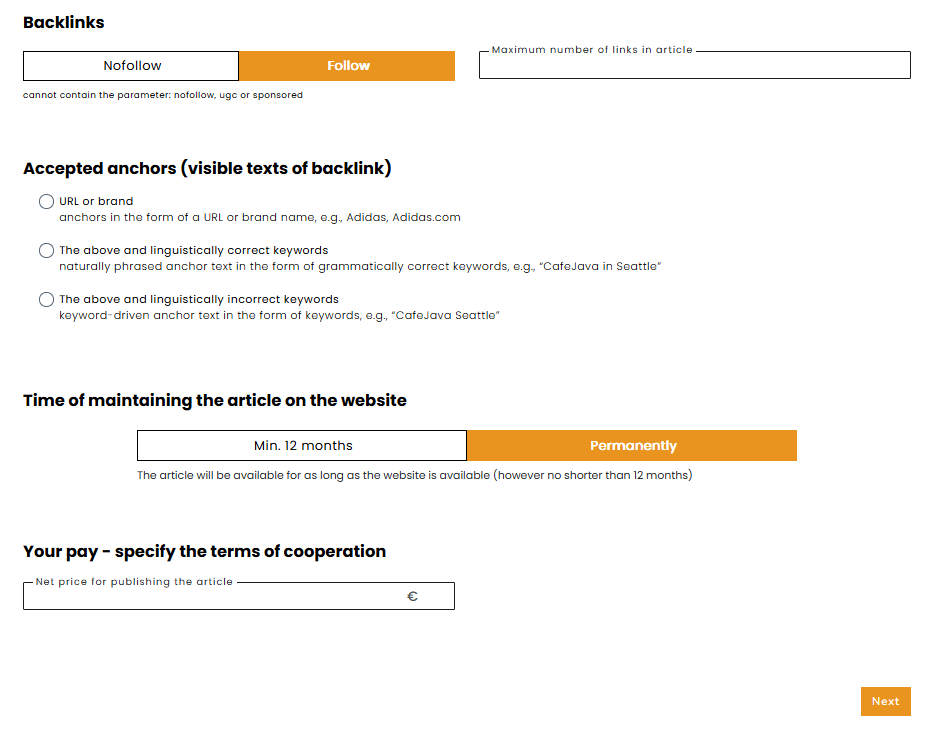
When you are adding an offer of a sponsored article, you have to fill in the boxes:
- Backlinks – check “Follow” if you agree to include in the publication follow links (cannot contain the parameter: nofollow, ugc or sponsored). Next to it, please fill in the maximum number of links in the article.
- Accepted anchors – select one option from: url or brand, the above and correct language-wise keywords, or the above and incorrect language-wise keywords.
- Time of maintaining the article on the website – choose how long publication will be displayed on your website: at least 12 months or permanently, which means that the article will be available for as long as the website is available (however, no less than 12 months).
- Your pay – specify the terms of cooperation – here you have to fill out the price for your offer and choose if you allow: publication of the article provided by the client and/or publication of an article written by you (article with a minimum length of 2,500 characters).
The next step is to add additional promotion to your article if this option is included in your offer.
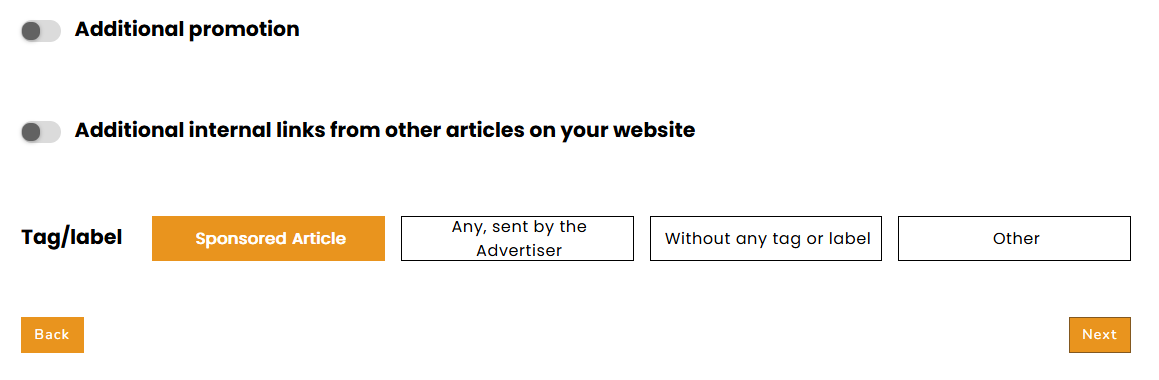
- Additional promotion – enter how many days the article will be displayed on the homepage. You can also extend your offer with social media promotion (Facebook or Twitter).
- Additional internal links from other articles – indicate how many additional (non-sponsored) articles you place on your website with a link to a published client article. You can use one editorial to link up to 5 different articles ordered by Linkhouse clients. You have to select one option from: none, 3, 5, 7, or 10. Read more about additional linking here!
- Tag/label – choose how the guest post on your website will be tagged. You can choose from four options of labels: guest post; any sent by the advertiser; without any tag or label; other.
The next step is to complete additional information about your offer.
You need to indicate where the internal link to the published article will be available for the entire publication period, making sure it does not include a rel=”nofollow” parameter. At least one option has to be selected, such as category or subcategory site, archive, or other.

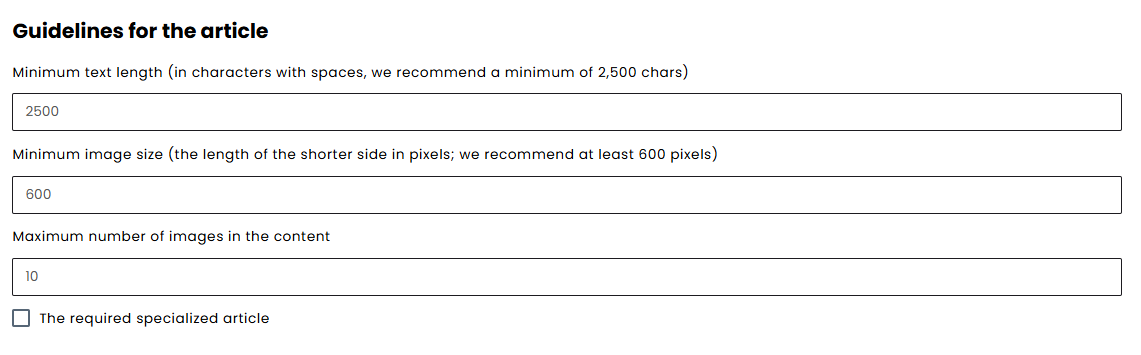
Then, fill in the guidelines for the article, including the minimum text length (in characters with spaces, with a recommended minimum of 2,500), the minimum image size (shorter side in pixels, with at least 600 pixels recommended), as well as the maximum number of images allowed in the content.
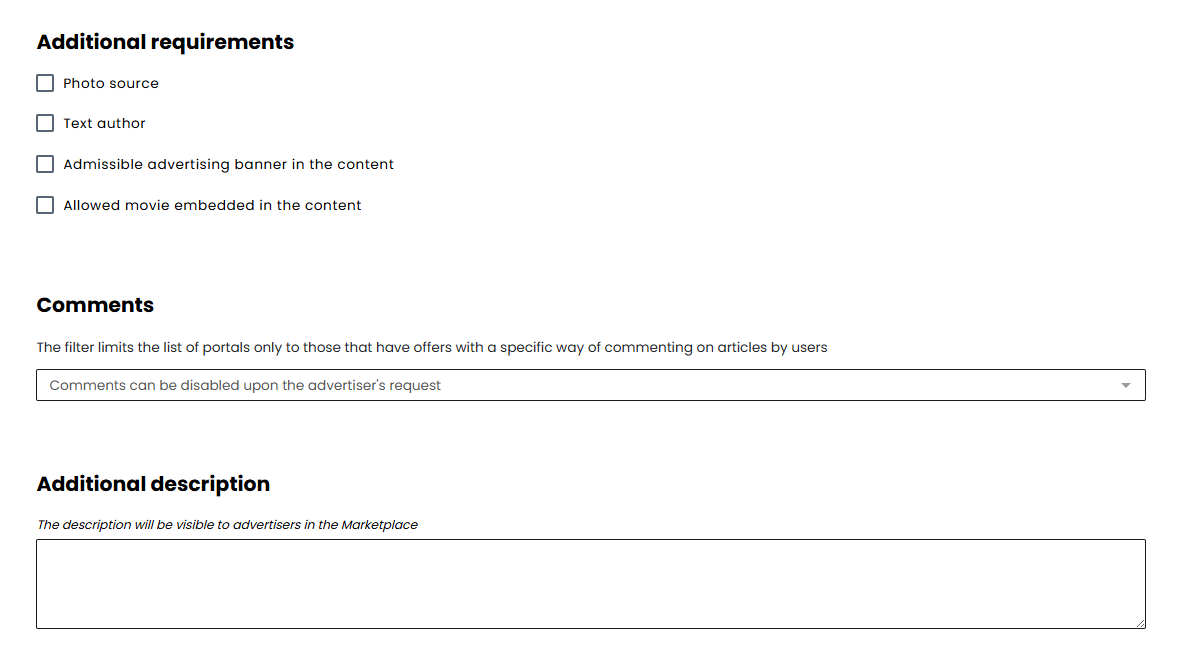
You can also specify additional requirements for advertisers, such as providing the source of the photo or the author of the text, and you may allow the use of a banner or embedded video in the content.
It is also necessary to choose how comments are handled, whether all articles can be commented, none of them, or whether commenting can be disabled at the advertiser’s request.
In addition, you have the option to add an additional description of your offer, which will be visible to advertisers in the Marketplace.
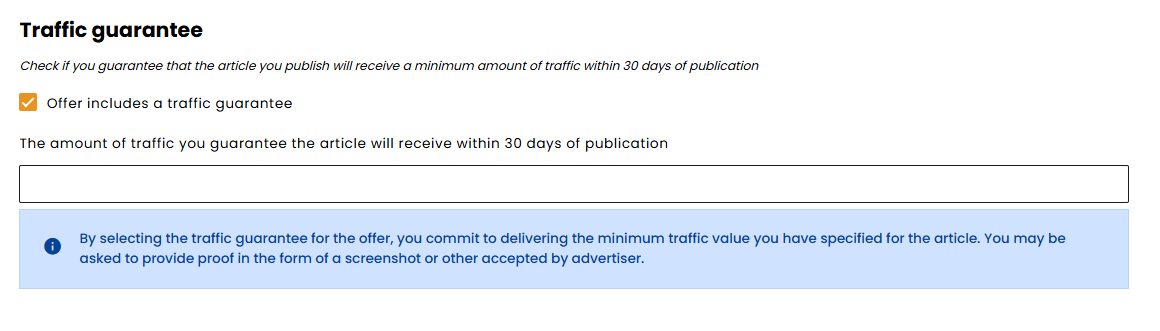
Another setting is the traffic guarantee. By selecting it, you commit to delivering the minimum traffic value you specify for the article, and you may be asked to provide proof in the form of a screenshot or another method accepted by the advertiser. Please select this option only if you are certain you can meet this requirement.
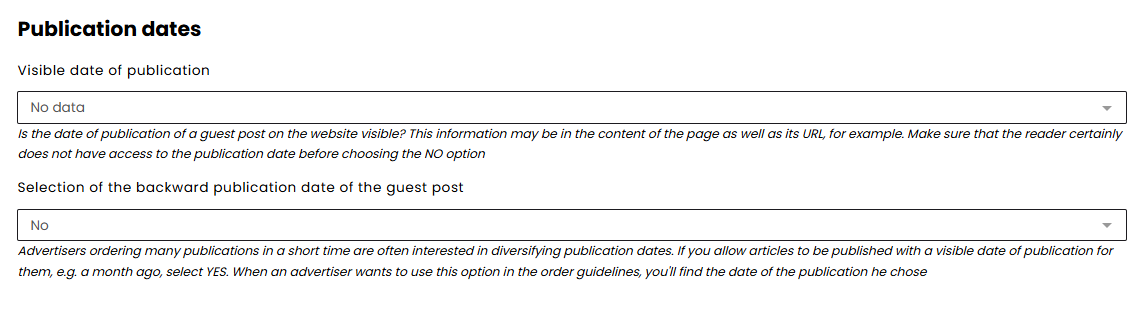
You can also decide whether the publication date of a guest post is visible on the site, either in the content or in the URL, and then choose one of the options: Yes, No, or No data, making sure the information is correct before selecting No.
Finally, you should define the rules for statistics. You can allow placing a tracking code (HTML) in the article, which enables advertisers to monitor traffic on that specific subpage. Allowing this option increases the attractiveness of your offer. You also need to determine whether you will provide advertisers with viewing statistics from Google Analytics or another traffic analysis tool.

You can also copy this offer to your other domains!

After completing all the options, click Save and your offer will be added to the website. At this point, you can either finish adding offers or immediately proceed to create the next ones!
Link insertions
Link insertions in existing articles are the second most popular option chosen by advertisers in our panel. Below you will find the information you need to complete when adding this type of offer.
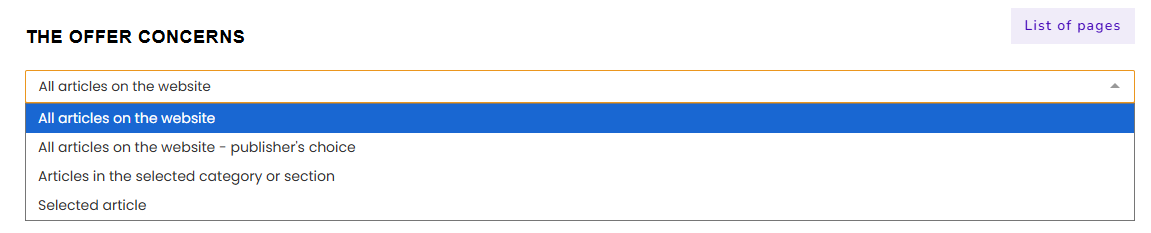
When adding this type of offer, you first need to indicate whether it concerns all articles on the site, articles within a single category or section, or a specific article. If you choose a single category or a specific article, you must also provide a link to it and specify the subject.
Next, decide whether the inserted link will have the dofollow parameter, keeping in mind that if you choose ‘Yes’ or ‘Yes or No (according to the advertiser’s wishes)’, the link cannot contain the parameters nofollow, ugc, or sponsored.

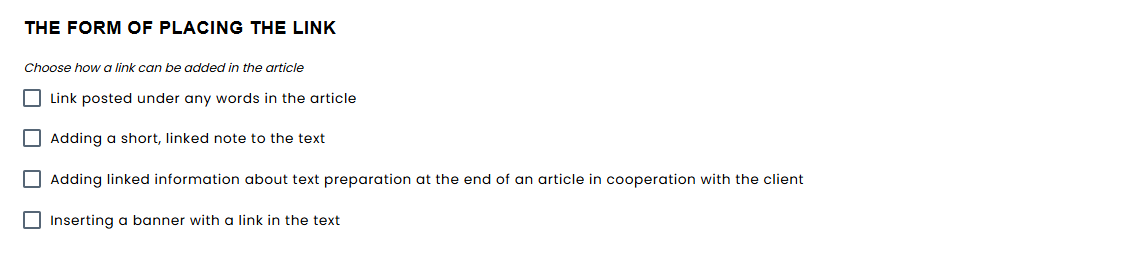
You also need to describe the form of placing the link, for example whether it will be posted under any words in the article, added as a short linked note, placed at the end of an article with information about cooperation with the client, or inserted as a banner within the text.
It is also necessary to define the duration time of the link. If you set a time limit, you must specify for how many months the link will remain visible, while if you select the permanent option, the link has to stay available for as long as the website is accessible, though no less than 12 months.
Please note that time limits make the offer significantly less attractive for advertisers.

Additionally, you have the option to add a description of your offer, which will be visible to advertisers in the Marketplace.

Finally you should provide the net price that you expect as remuneration for the publication.

At the end, save your offer by clicking Save.
Advertising links
Advertising links are a form of promotion where a banner or text link is placed directly on your website. They are valued by advertisers who want their brand or offer to be visible in a fixed place on the site. When adding this type of offer, you need to provide several important details to define how the link will be displayed.
When adding this type of offer, you need to provide several important details to define how the link will be displayed:
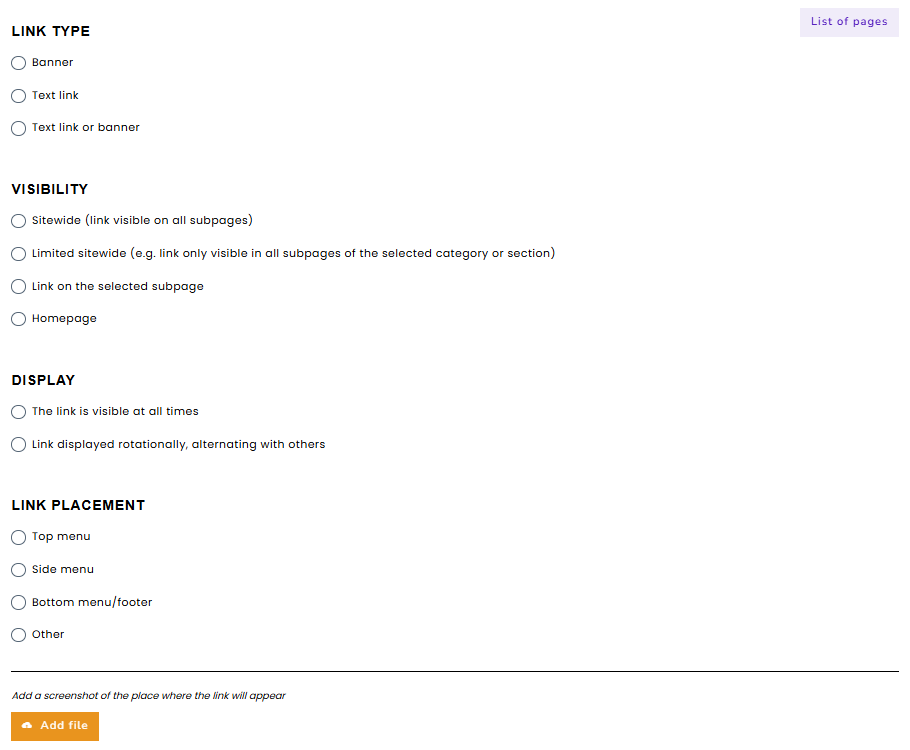
Link type – decide whether you want to place a banner or a text link. If it is a banner, provide permissible dimensions (width x height in pixels). If it is a text link, select one of the available formats: brand or URL, language-correct anchors (e.g. “proven electrician from Krakow”), or any anchor (e.g. “cheap electrician Krakow”).
Visibility – specify whether the link will be visible sitewide (on all subpages), limited sitewide (e.g. only within a category/section), or only on a specific subpage. If you choose a specific subpage, you must also add its URL within the same domain.
Display – choose whether the link will be visible at all times or displayed rotationally with others. If you opt for rotation, indicate the maximum number of links/banners in the rotation.
Link placement – select where the link will appear: top menu, side menu, footer, or another place, and provide a screenshot of the chosen location.
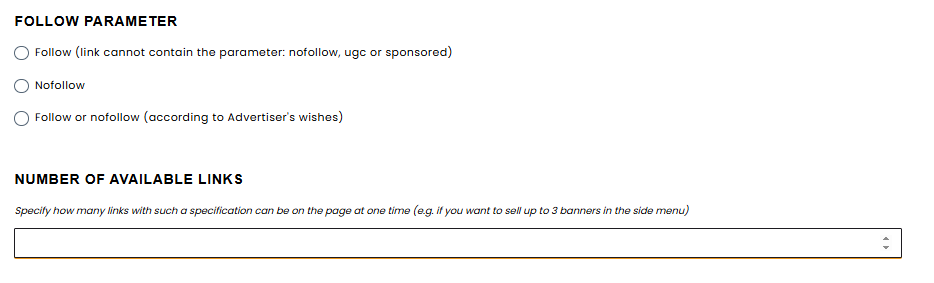
You also need to define the follow parameter, deciding whether the link will be follow or nofollow. Remember that if you choose follow, it cannot contain the parameters nofollow, ugc, or sponsored.
Next, specify the number of available links, meaning how many banners or text links with such a specification can be displayed simultaneously on the site (for example, up to three banners in the side menu).
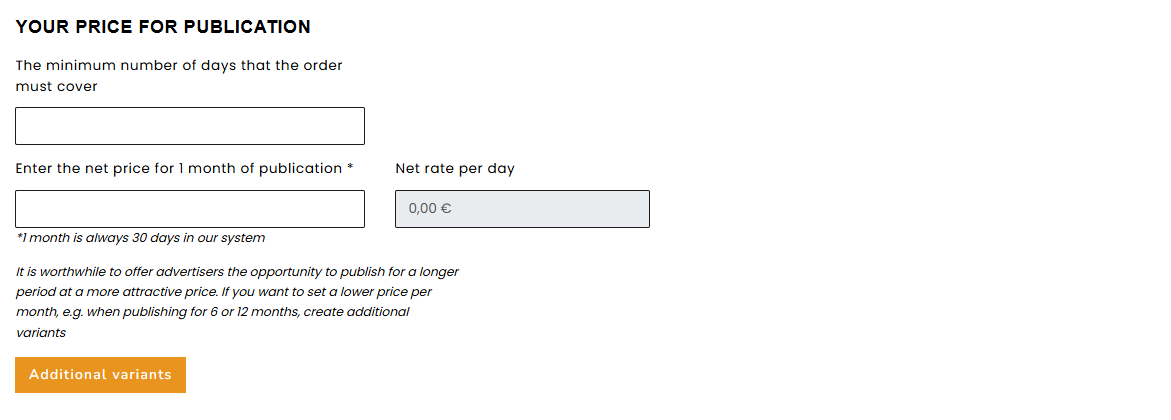
Finally, provide details of your remuneration by entering the minimum number of days the order must cover and the net monthly price for publication. It is a good practice to encourage advertisers to order longer periods at a more attractive price. If you wish to set a lower monthly rate for long-term commitments, such as six or twelve months, you can create additional variants to make your offer more appealing.
If you wish, you can also add the same offer to your other websites.

At the end, save your offer by clicking Save.
Press mentions
Press mentions are a type of offer where an advertiser’s brand or link appears within an existing or newly created article on your website. They are valued for combining visibility with natural content placement. When adding this kind of offer, you need to define several details that determine how the publication will look and under what conditions it will be accepted.
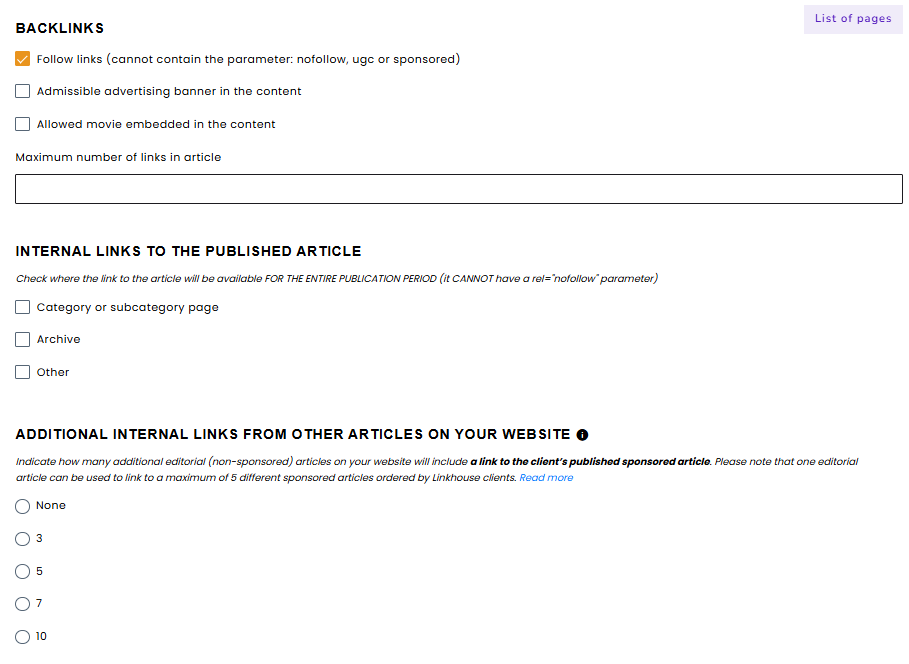
Start by setting the rules for backlinks, deciding if you agree to include follow links (without the parameters nofollow, ugc, or sponsored), whether banners or videos can be used, and the maximum number of links in the article.
Then define internal links to the published article, choosing where they will be visible for the entire publication period (category, subcategory, archive, or other).
You can also add internal links from other articles, indicating how many non-sponsored pieces will link to the client’s article, selecting from none, 3, 5, 7, or 10.
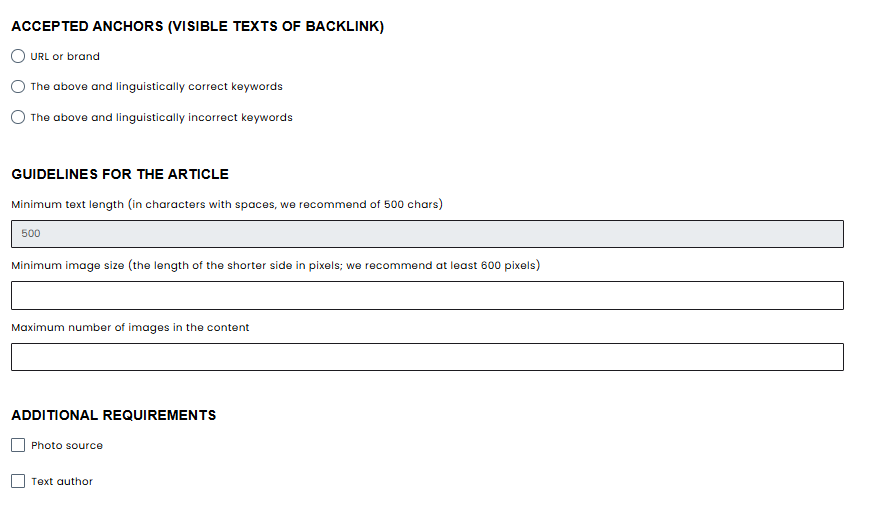
Next, specify the accepted anchors (URL or brand, correct or incorrect keywords), and in guidelines for the article, set the minimum text length, minimum image size, and maximum number of images.
Under additional requirements, you can ask advertisers for elements like photo sources or author details and allow banners or embedded videos.
You also need to choose a tag/label for the article (guest post, advertiser-provided, none, or other) and decide whether comments are allowed, blocked, or disabled at the advertiser’s request. Then, define the time of maintaining the article – permanently (at least as long as the site exists, but no less than 12 months) or for a minimum of 12 months.
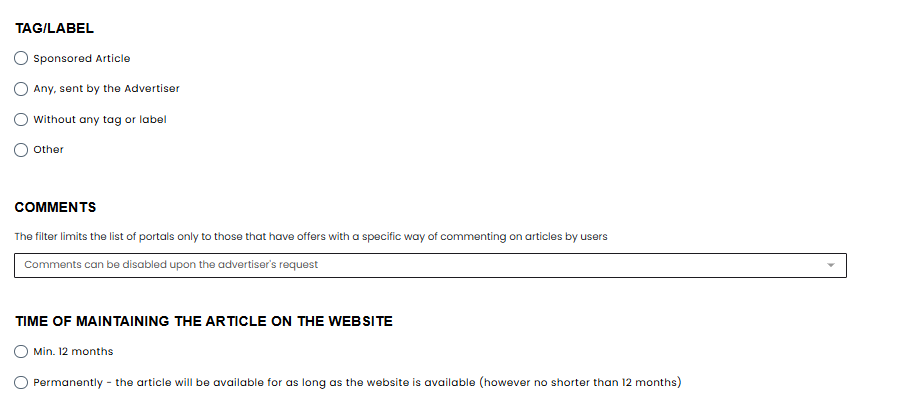
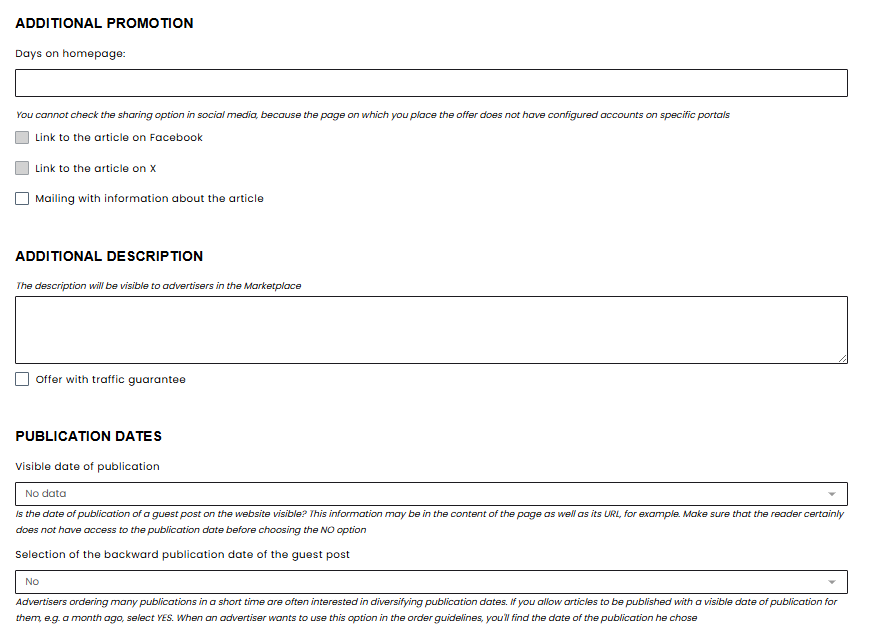
You may also add extra promotion, specifying how many days the article appears on the homepage and whether it includes promotion via social media or mailing.
In the additional description, you can provide more information about your offer, visible to advertisers in the Marketplace.
Remember to state whether publication dates are visible (Yes, No, or No data) and select No only if the date truly cannot be accessed by readers.
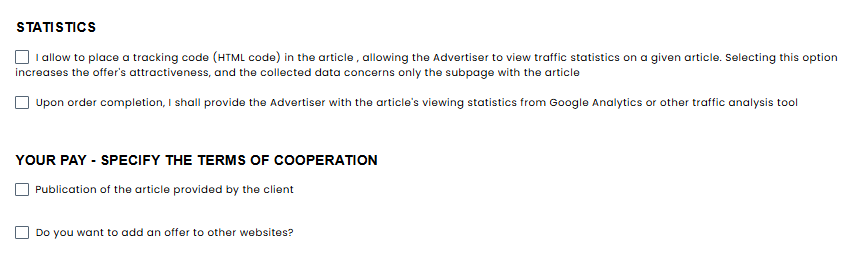
Finally, configure statistics, deciding if you allow placing a tracking code (HTML) in the article so advertisers can track traffic on that page, and whether you’ll provide stats from Google Analytics or another tool.
In your pay, enter the net price and choose if you accept articles provided by the client, ones written by you (min. 2,500 characters), or both.
At the end, save your offer by clicking Save.
Brand mentions
Brand mentions short mentions without links, added to an already published editorial article on your website. This article must not contain any other mentions or sponsored links.
When adding this type of offer, you first need to indicate whether it concerns all articles on the site, articles within a single category or section, or a specific article. If you choose a single category or a specific article, you must also provide a link to it and specify the subject.

It is also necessary to define the duration time of the link. If you set a time limit, you must specify for how many months the link will remain visible, while if you select the permanent option, the link has to stay available for as long as the website is accessible, though no less than 12 months.
Please note that time limits make the offer significantly less attractive for advertisers.

Finally you should provide the net price that you expect as remuneration for the publication.

At the end, save your offer by clicking Save.
Edit existing offers
To preview and edit offers for the specific website click on Show all on your websites list.

Here you can see, edit and turn on/off offers. Also, you can check status of your offers and give them their own names that only you can see – this can help you with managing the offers.

In the actions tab, you can choose:
- pencil – which allows you to edit the offer
- eye – which allows you to activate or deactivate the offer
- label – which allows you to set promotional offers
- copy icon – allowing you to copy a given offer to other domains
If a website and offer has been added and successfully moderated then they are visible to potential customers in our Marketplace.
Duplicating Offers
If you manage several websites where you publish recurring offers, you can use the offer duplication function. This way, you’ll avoid creating everything from scratch, which will save you time and make the whole offer management process more efficient.
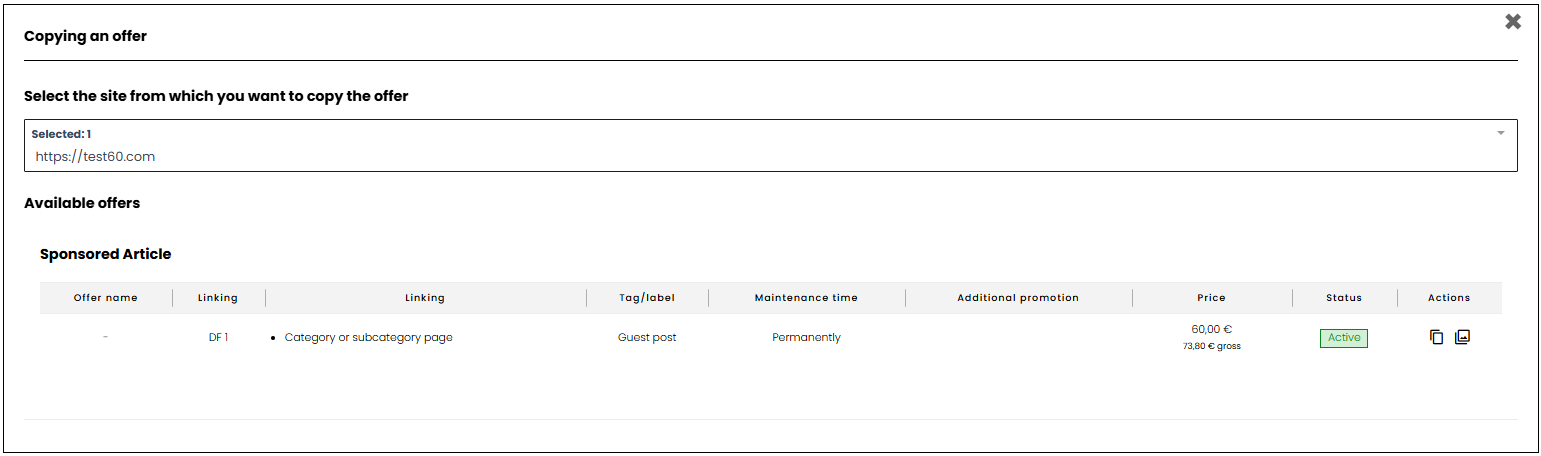
You can duplicate an offer from another website directly in the My Websites view. Simply select the Add a copy of an offer option and then choose the site from which you want to transfer the offer.


After selecting the appropriate site, search for the offer and add it from the chosen portal.
Bulk Offer Price Management
The panel also includes a Bulk Offer Price Management option, which allows you to quickly update prices across all active offers at once. This way, you don’t have to edit each offer individually, making the process of managing offers much faster and more efficient.
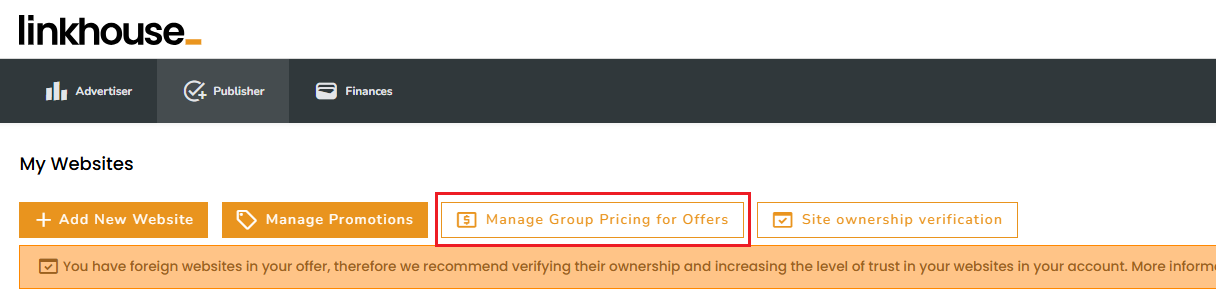
To update prices in bulk, go to the Manage Group Pricing for Offers option.
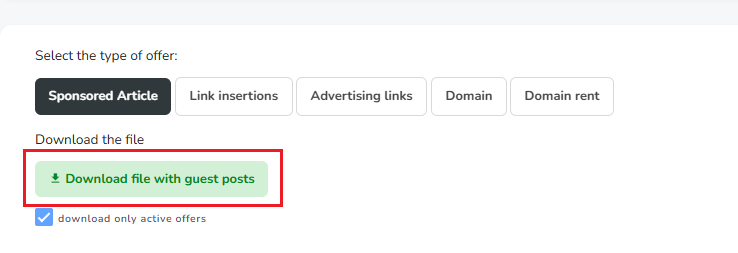
Then select the type of offers you want to update, for example sponsored articles, and download the prepared file with the list of offers.
After downloading the file, open the spreadsheet and update the prices in column B, making sure that all values are entered in the numeric format 0000.00. If the prices are entered in a different format, the module may have trouble reading them correctly.
Once all prices have been updated, save the file and upload it back into the panel. After uploading the file, click Save price changes to confirm the update. From that moment, the new prices will be applied automatically.
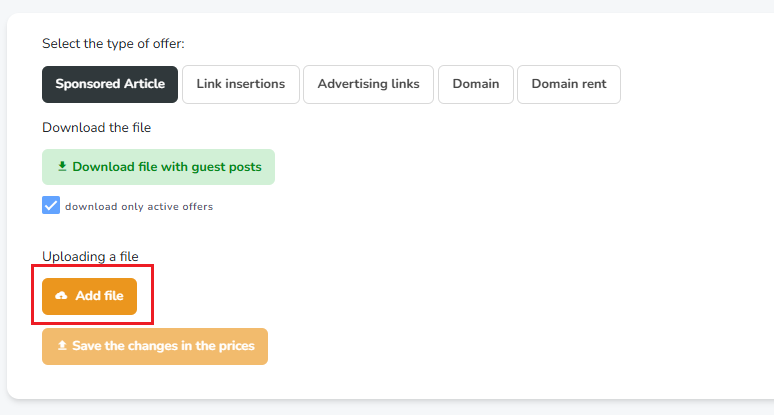
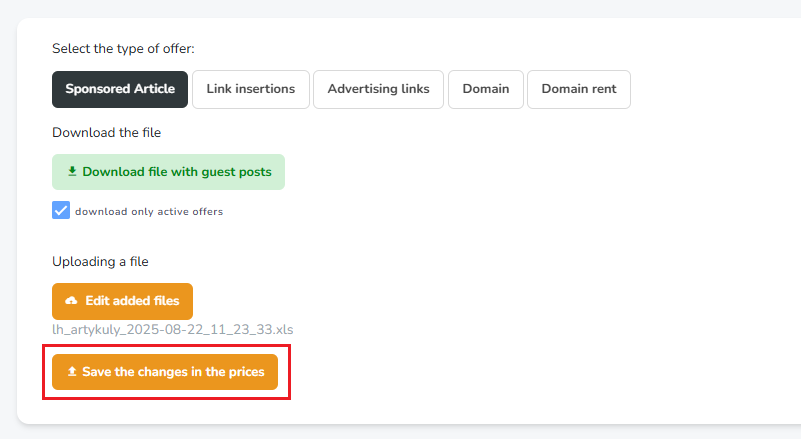
Please note that this module is used exclusively for updating offer prices. This means that any changes made in other columns of the file – apart from the price column – will be completely ignored by the system.
Holidays
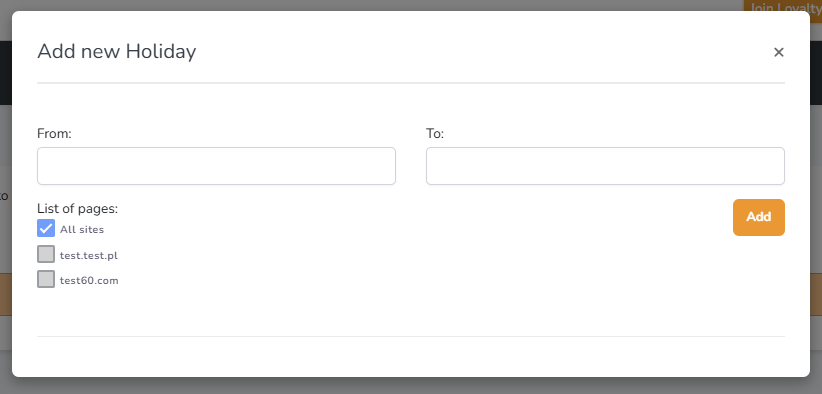
If you are planning a vacation, please make sure to set your holiday dates in the panel. This is important for both us and our clients, as we aim to ensure the fastest possible order processing. To do this, click Publisher in the main menu, go to Holidays, then click Add vacation and fill in the date fields.
If you have any problems with using the platform or doubts about how to create an offer contact us via email: [email protected]
