
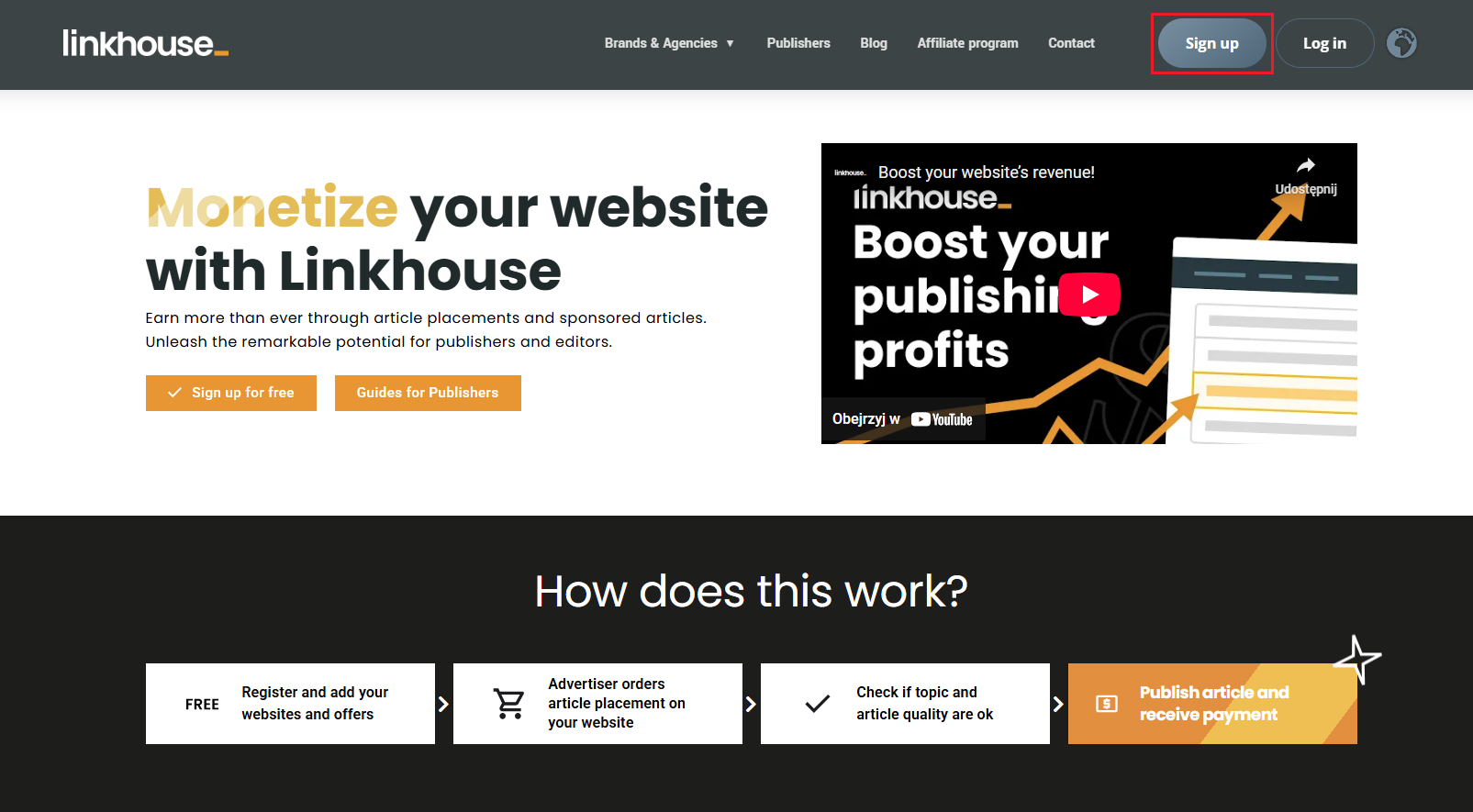
Registration
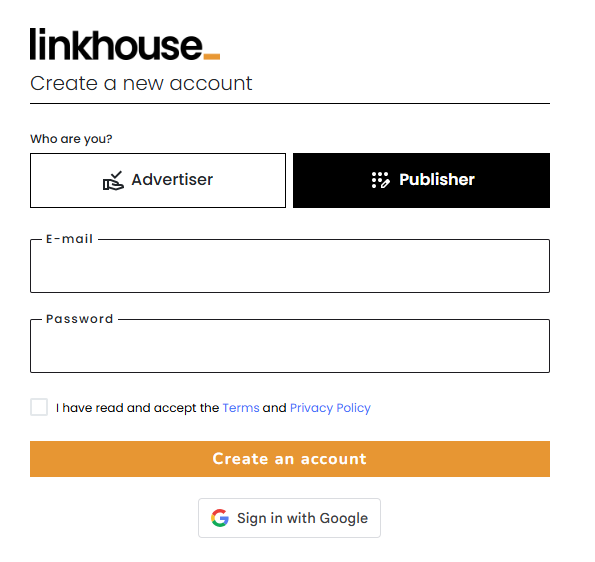
Select the type of account you want to use (you can change it at any time in the settings).
- Publisher – choose this option if you want to offer services, for example: sell sponsored articles or link insertion on your website.
- Advertiser – choose this option if you don’t own any websites and you are only interested in buying publications through our platform.
Fill the boxes with your e-mail address and password (minimum 6 characters), select necessary checkboxes and click the Create an account button.
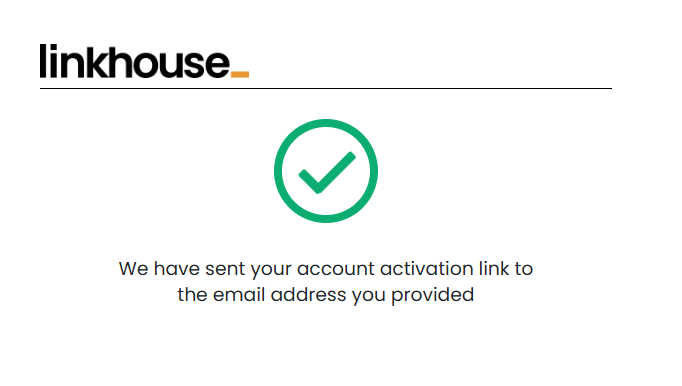
On your screen, a pop-up will appear stating that we have sent your account activation link to the e-mail address provided.
The next step is to confirm your email address by clicking the activation link that has been sent to your inbox.
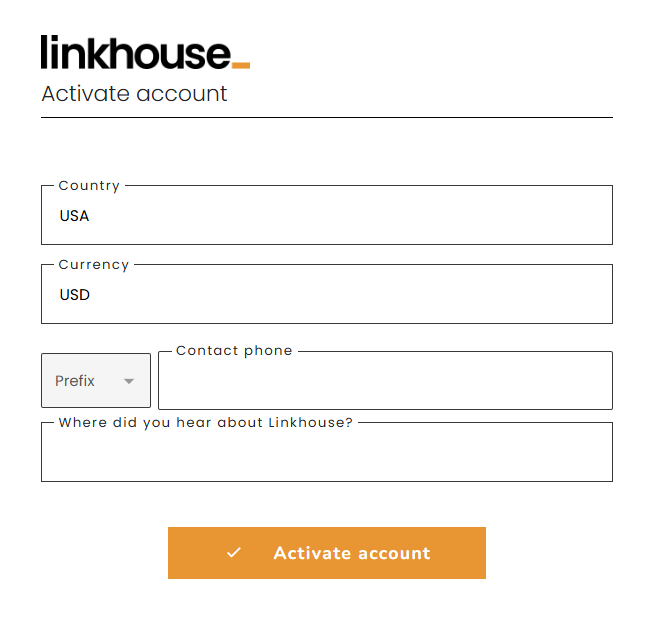
Once your account is activated, you will be able to select your preferred country and currency. At this stage, you can also provide your contact number (optional) and let us know how you heard about Linkhouse.
Adding Websites and Offers
After activating your account and logging in, the next step is to add your website to the system by filling in the necessary details, and then create your publication offer.
To add your website, you need to provide its domain, select the website’s language, and define the main thematic category of the site.
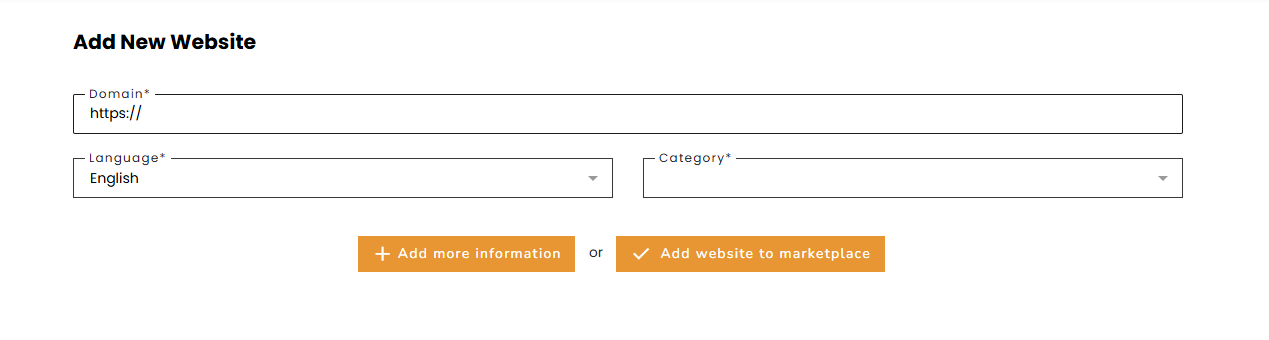
After adding your website, you also need to create an offer for it. Only once the offer has been added will your site become visible to advertisers in the Marketplace.
In our panel you can add offers from one of 4 main categories:
- Sponsored article (an article written and posted on your website by somebody else),
- Link insertions (any link that gets placed into existing content),
- Advertising backlinks (text links and banners placed on your website),
- Press mentions (Short mentions that can be duplicated and do not necessarily include outbound links. Titles, however, must always remain unique).
When adding an offer, pay attention to the durability! You can set links for at least 12 months or permanently. This means that in the first case you are committing to have the publication displayed at least one year after purchase. The second option assumes that the publication will always be displayed and you will not remove it from your website.
Learn more about adding websites and offers in our instruction.
Orders
Once your websites and offers have been added and approved, they become visible in the marketplace, where advertisers can independently purchase publications. All orders you receive will then be displayed in one place in your panel. Read more in our instructions.
Settings
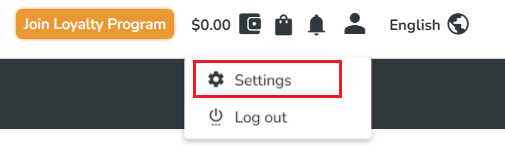
Your account settings are always available, allowing you to complete your details or make changes whenever needed. To access them, click on your name in the top right corner and select Settings.
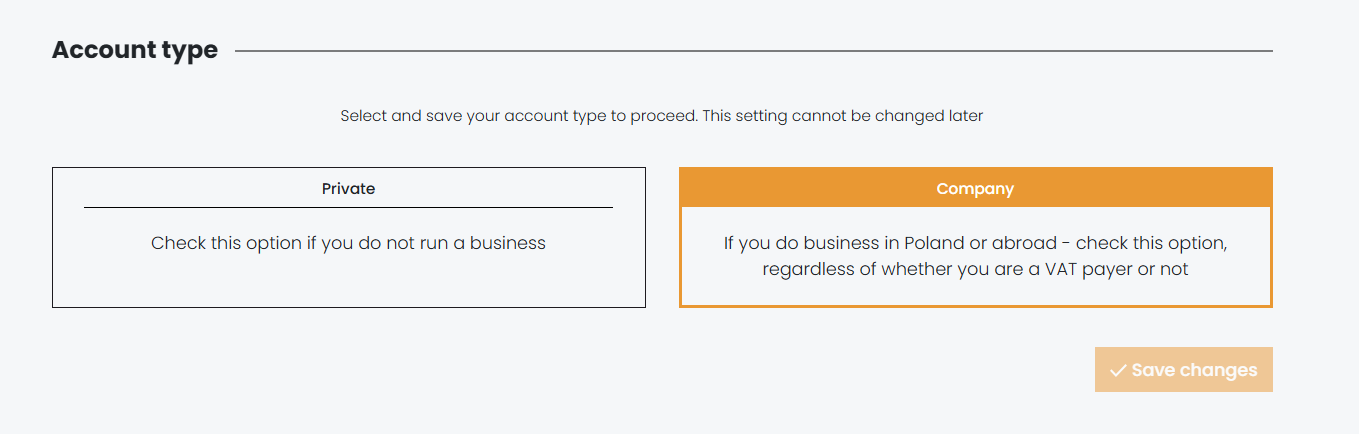
In the account settings, you can select your account type — either company or private. This information is required for withdrawal purposes, as it defines whether payments will be settled with you as a private individual or as a company.
At this stage, you have the option to complete your account details. You have to enter your: name, surname, street, zip code, city, country and contact phone. If you’ve chosen the company as your profile type in the previous step, you have to also fill in your full company name and register number. In this section you can also assign an additional email address. You can set a contact address and another for invoices in your profile.
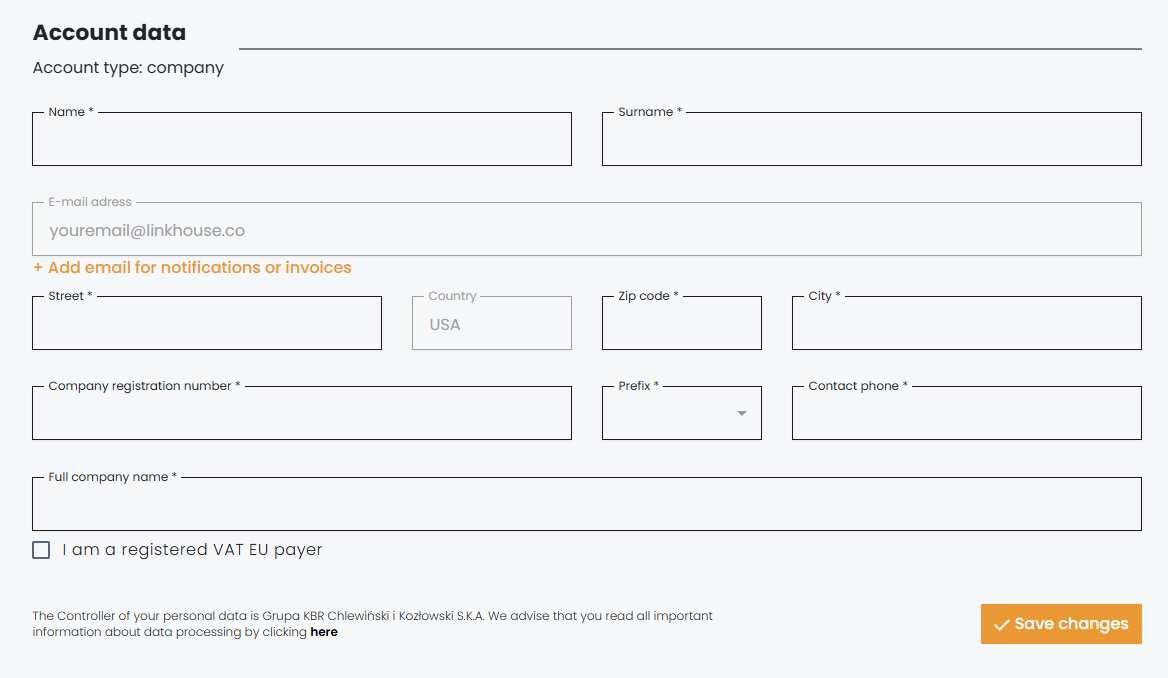
When you are ready, click the Save changes button.
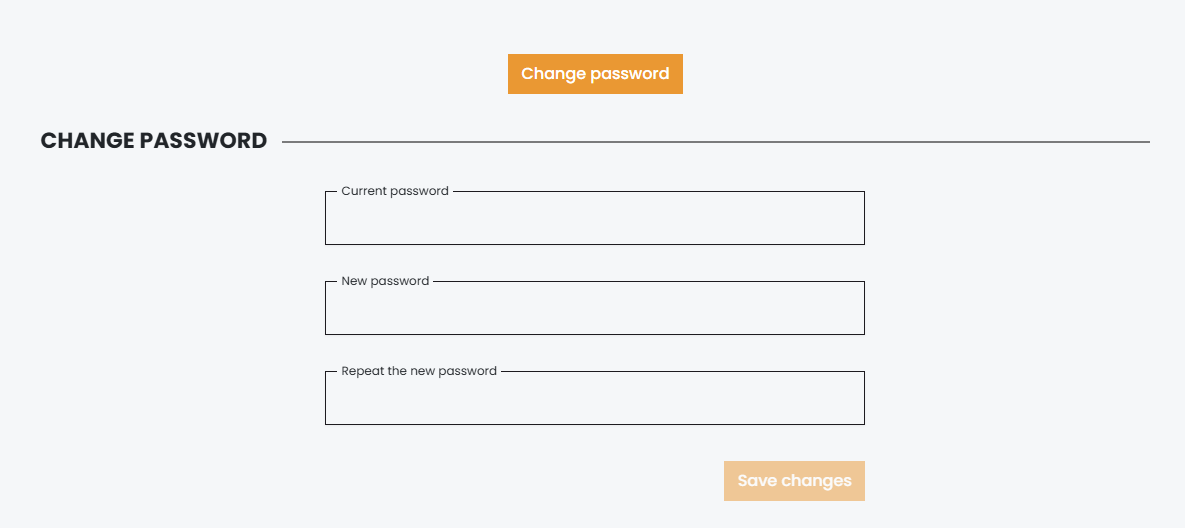
If you want to change your password, you have to fill the current one, and then fill the new password twice. After that, click the change password button.